


Your Google Business Profile is the panel that shows up on Google Maps and beside search results with your hours, reviews, photos and phone number. It is free, and for a lot of local businesses it gets more views than the website.
This guide walks through setting it up properly. For how it ranks once it is set up, read how to rank on Google Maps.
1. Claim it or create it
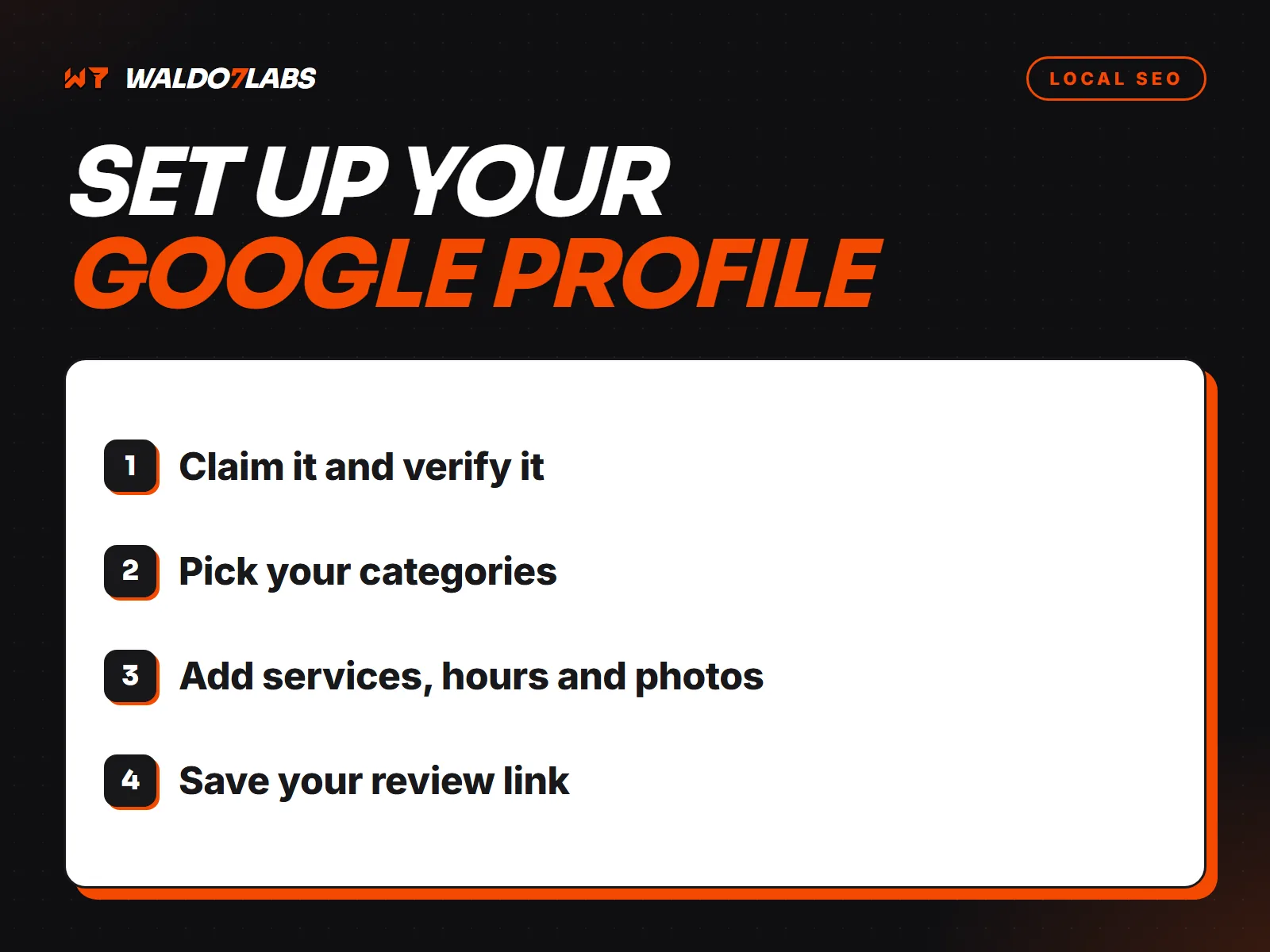
Search for your business name on Google Maps. If a profile already exists, choose the option to claim it. If not, create one through Google Business Profile. Use a Google account that belongs to the owner, not an employee or a designer. You can add other people later.
2. Verify it
Google needs to confirm you are real. These days that is often a short video showing your business: signage, equipment, a vehicle with the business name, tools of the trade, and proof you manage it. Some businesses get a phone, email or postcard option instead. Until you are verified, your changes may not show.
3. Choose storefront or service area
If customers come to your address, show it. If you go to customers and have no public storefront, hide the address and list your service area instead. A contractor working from home should hide the address. Listing a home as a storefront can get a profile suspended.
4. Pick your categories
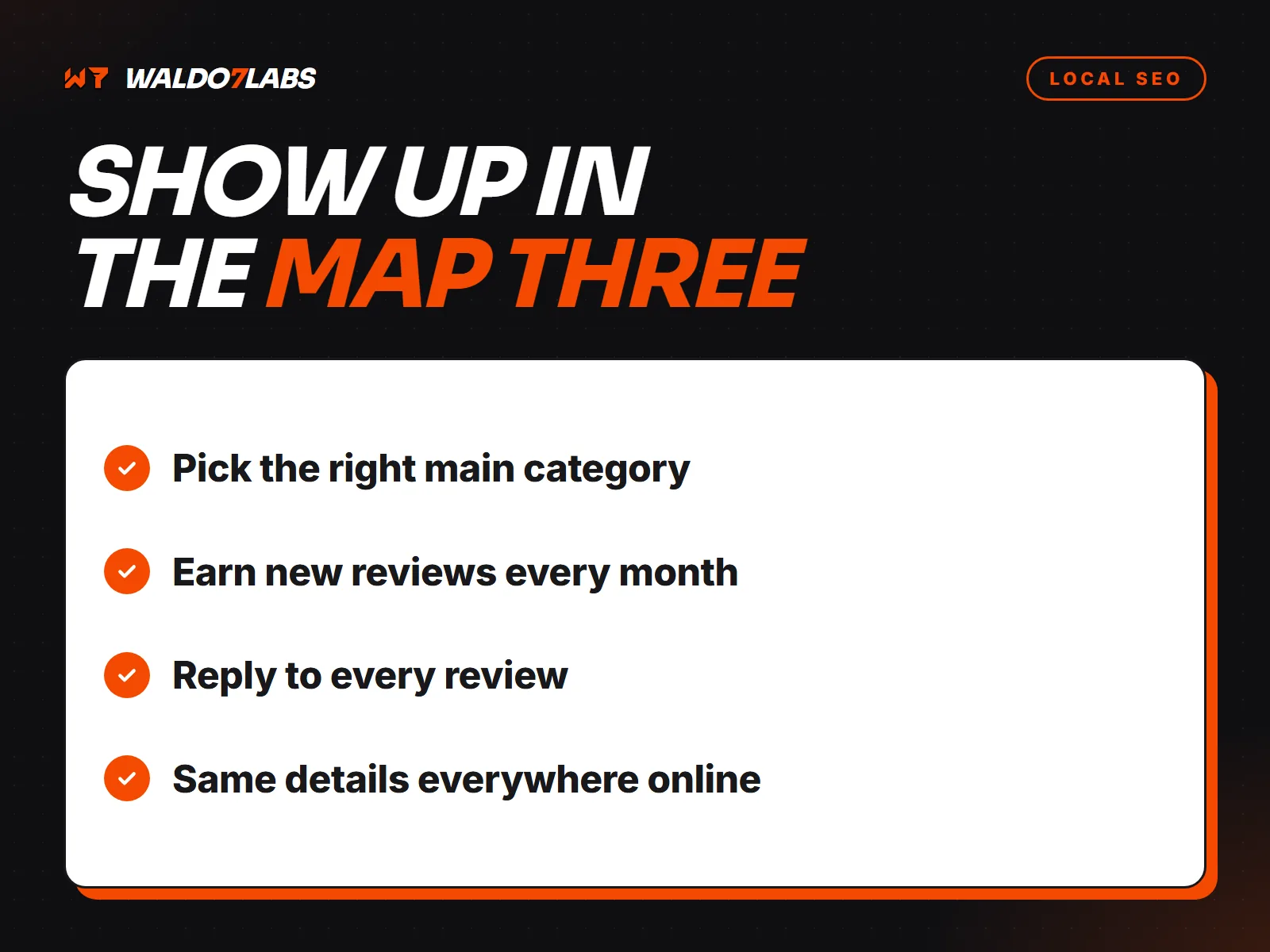
Your primary category is the most important setting on the profile. Pick the most specific one that matches what people hire you for. Then add a few secondary categories for your other main services. Do not add every category that loosely fits.
5. Add your services
List each service separately with a short description in plain words. Add prices if you can stand behind them. Use the words customers search: "gutter cleaning", not "exterior maintenance solutions".
6. Write the description
You get 750 characters. Say what you do, where, and why you are the right call. Leave out the phone number and web address, since they have their own fields, and do not stuff it with town names.
7. Hours, including holidays
Set your regular hours, and update holiday hours before each holiday. Nothing loses a customer faster than showing "Open" when you are closed.
8. Photos
Add real photos: your work, your team, your vehicles, your shop or storefront, and your logo. Keep adding new ones as you finish jobs. Skip stock photos. They are easy to spot and do nothing for trust.
9. Link to the right page
Point your website link at the page that best matches your main service. Add a booking or quote link if you have one.
10. Save your review link
From your profile, find the option to ask for reviews and copy the short link. Save it in your phone. Put it on invoices, in your email signature, and in a text you send after every job.
11. Share access the safe way
Never share your Google password. Add your office manager or web designer as a manager with their own account. You stay the owner.
12. Keep it alive
Add photos when you finish jobs. Share an update or an offer now and then. Reply to every review. A profile that looks active looks like a business that is open and busy.